
Overview
Bluebeam Revu is the complete PDF creation, viewing, markup and editing tool for tablet PC users including Windows 8 devices with high-resolution displays up to 4K. Included are features specifically designed for tablet OS users who are looking for a quick and easy way to review and annotate PDF files with the ease of their tablet pen. Copy and paste between Revu and Windows tablet applications (Journal™ and OneNote™) and insert pages with one tap of the pen. Revu also uses pressure sensitivity technology to simulate paper and ink. The pen is truly mightier than the keyboard.
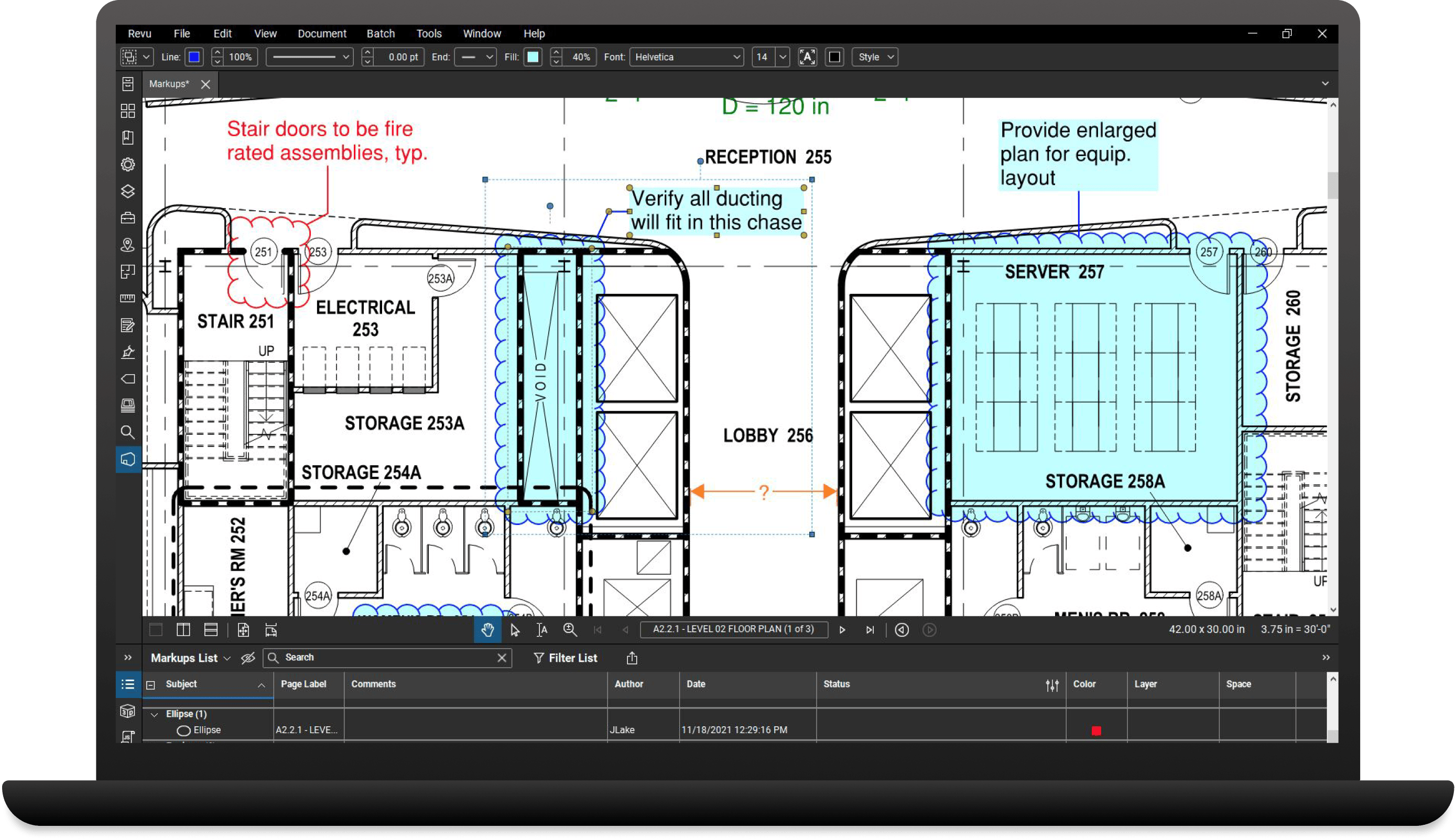
Markup tools are located to the right of the main desktop workspace for quick access. The high-resolution Pen and Highlight tools make it easy to comment on a document with freehand text or diagrams. Use the top of the Pen as an eraser to delete any unwanted marks. Lines, clouds and images are within a few clicks.
Revu uses tabbed navigation, making it easy to open and review multiple PDF files simultaneously. Double tap on the workspace and a zoom control will appear. Simply slide your pen up/down to zoom in/out.
Draw a region with the stylus to select all annotations within the region for group operations. You can select multiple annotations to copy, delete, modify, move or group together.
Revu comes with several predefined profile settings to make it easy to switch your interface between different views. After installation, select the Tablet profile to display the interface in landscape mode for easier viewing, markup and editing. Customize the profile to suit your needs or create multiple profiles.
The Revu interface can be changed to Full Screen mode, removing all panels, menus and toolbars from the interface for maximum PDF viewing. Full screen mode displays a customizable floating toolbar that can be used to add markups while in this mode.
Feel free to change the size, layout and overall look and feel of your PDF with Revu. PDF editing options include the ability to add blank pages, insert, extract and rotate pages as well as copy and paste true text from your PDF into MS Office files such as Word, Journal™ and OneNote™.
Insert the work space you need for comments and illustrations. Just click Insert Blank Page in the Thumbnails tab or Document menu to add a page to your document. Select a 1/4" or 1/8" grid pattern, or a line pattern on the page to add more detail or set a scale.
The Free Text markup tool makes use of a TIP (tablet input panel) with text recognition when adding a Free Text, Callout or Leader Line annotation. Write on the upper half of the input panel and the text will appear in the lower half. Use the caps lock and all your text will appear in upper case. A delete, backspace, return and space button are included to make editing a breeze. An additional benefit with these types of annotations is that they are all text searchable.
With pressure sensitivity technology, Revu simulates the characteristics of writing with pen and paper. Thicker ink lines appear when pressing harder on the tablet screen and thinner ink lines appear with a light touch.
Use various toolbars to quickly and easily change the appearance of your annotations. For instance, changing borders, line type, color, fill, opacity, font and alignment are all accessible and obvious. You can choose the toolbars you wish to display in the interface under the View menu.
Store ink components in a tool set to reuse later. The Tool Chest records and tracks markup tools as you use them. For example, by selecting the Text tool and placing a text annotation on the active document, an icon representing the text annotation will appear under Recent Tools in the Tool Chest tab. Duplicate the annotation by selecting this icon and place it anywhere in the document.
All annotations placed in a PDF may be rotated by any angle using the control point or Properties panel. Rotate by pressing the left mouse button to select the orange control point. As the mouse pointer moves, the rotation angle will be displayed. The rotation is set to increment by 15 degrees; hold the Shift key to rotate one degree at a time.
Enables the same annotation to be added to the PDF without reselecting it from the toolbar. This mode is helpful when adding the same annotation on the PDF sequentially.