
Home / Products / Bluebeam Revu /

Revu® iPad

Revu iPad

Bluebeam® Revu for iPad lets you work without limits. Access and navigate your PDF files on the go and redline PDFs with industry-standard symbols. Save custom markups for reuse across sessions, and collaborate with colleagues across the globe in real time using Revu's cloud based solution, Bluebeam Studio™ anytime, anywhere - regardless of Internet access. All it takes is a tap and swipe to experience the difference.
Download now for $9.99.
Available on the App Store
Sync PDFs on iPad

Sync files

Sync files and entire project folders using Dropbox, Box, Studio Projects or WebDAV, or transfer files via iTunes, using the Document Manager. No matter what method you use to access and update files with your iPad, all the PDFs you need are just a few taps away.

Learn more


Navigate PDFs on the iPad

Navigate and Edit

In Revu, each file you open gets its own tab so you can easily navigate between PDFs with a tap and swipe. Use the Thumbnails tab or alternate between Full Page, Scrolling Pages and Reader view modes to quickly review multi-page documents and rotate with a twist. You can also easily search for text, reorder pages, insert and delete pages, or add, delete and jump to bookmarks in a PDF from the Bookmarks tab.

Learn more


Redline PDFs on the iPad

Save and Import Tools

Revu's exclusive Tool Chest™ lets you save your custom markups for easy reuse. Save them to existing tool sets or create new ones for specific projects and functions. Expand tool set Details to show the subject, comment and label associated with each tool. You can even import tool sets created in the Windows version of Bluebeam Revu by saving the tool set file into your iTunes, Dropbox, Studio Project or Box account. How's that for convenient?

Learn more


Track PDF Markups on iPad

Track Markups

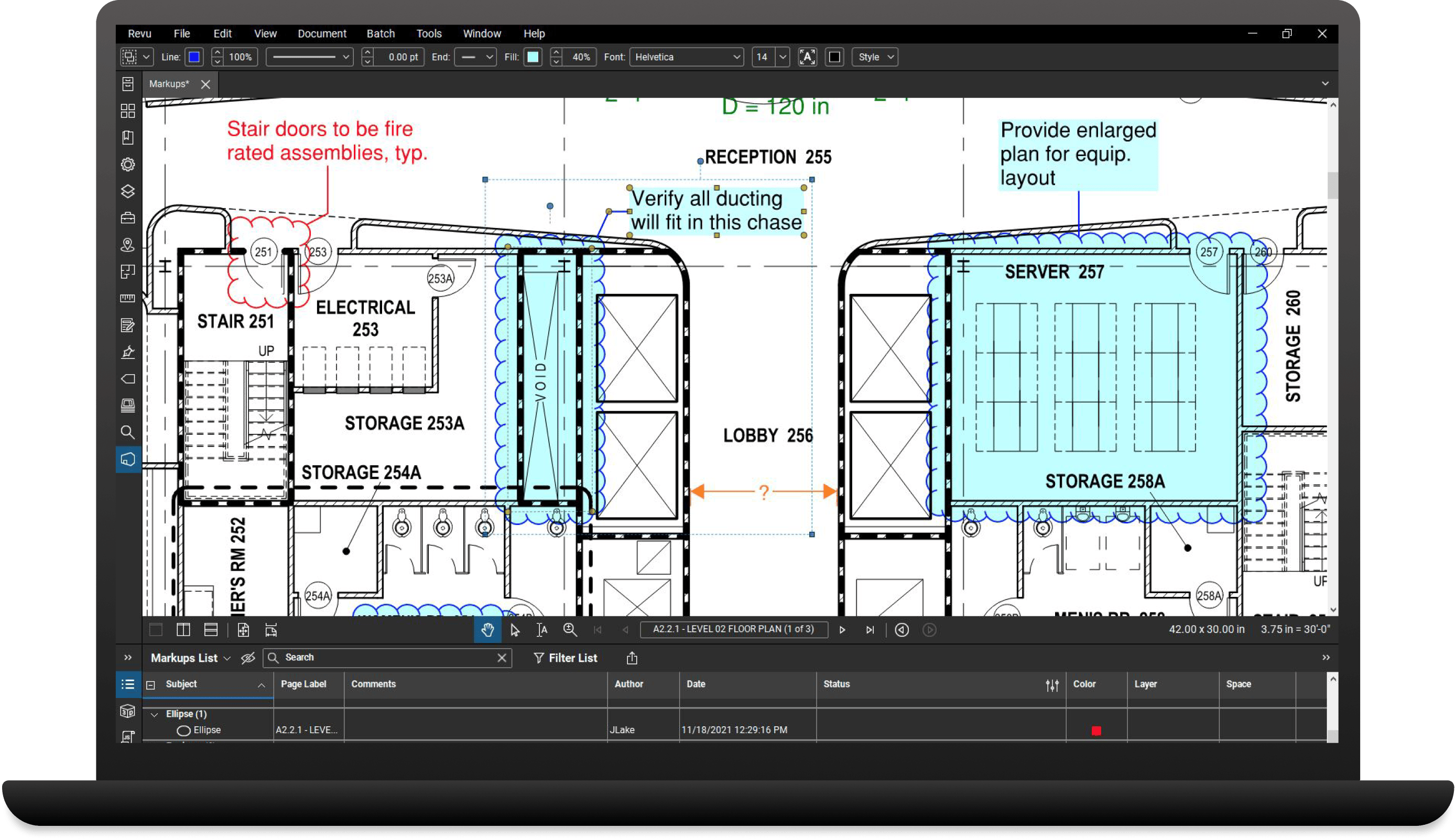
Want to know who said what, when? Revu's Markups list technology tracks the author, date, time and comments associated with each markup. Tap listed markups to locate them on the PDF, or tap a markup on the PDF to highlight it on the list. You can also sort and filter markups, view Custom Columns and manage which columns are displayed.

Learn more